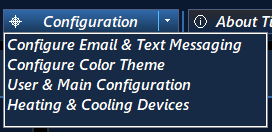
To change T4W’s Color Theme click on the Configuration Tab located along the top of the Dashboard and then click the Configure Color Theme menu option.
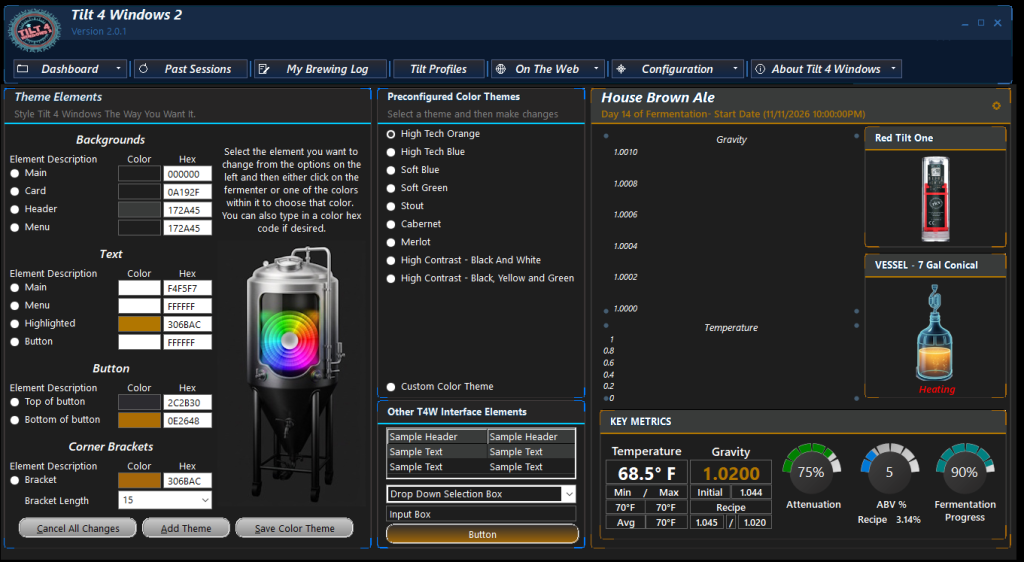
The Color Theme window will be shown which will look like this.
Customizing Your Theme & Colors:
Personalize the look of Tilt 4 Windows 2 by choosing a Preconfigured Color Theme or designing your own color scheme.
- Select a preset from the Preconfigured Color Themes, or create a custom one.
- To change a specific color, click an item in the Theme Elements area.
- Choose your new color from the color picker, or type a custom Hex value directly into the field.
- Preview your design in the real-time preview panel on the right side of the window.
- Click Save Color Theme to apply your changes.