Skip to content
  • Home
  • System Requirements
  • Compatible Products
  • Knowledge Base
  • User Manual
  • Download
  • About
  • Contact
Tilt 4 Windows 2
  • Home
  • System Requirements
  • About
  • Contact

Installation

1
  • Installation

Configuration

6
  • Initial Setup (User & Main Configuration)
  • Adding Tilt(s) to T4W
  • Configure Your Tilt(s)
  • Configure your Text & Email information for notifications
  • Configure Heating & Cooling Devices (Smart Plugs)
  • Configure T4W’s Color Theme

Sessions

6
  • Starting a new Tilt session
  • Configure Session
  • Google Sheets (Automated)
  • Edit Session Information
  • Marking A Session As Completed
  • Past Sessions & My Brewing Log
  • Home
  • Docs
  • Configuration
  • Configure Heating & Cooling Devices (Smart Plugs)
View Categories

Configure Heating & Cooling Devices (Smart Plugs)

< 1 min read

0:00 / 0:52
  • View as Markdown Open this page as plain Markdown (opens in a new tab)
  • Open in ChatGPT Ask questions about this page (opens in a new tab)
  • Open in Claude Ask questions about this page (opens in a new tab)
  • Open in Google AI Studio Ask questions about this page (Google account required) (opens in a new tab)

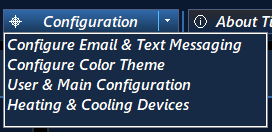
To add or change your Smart Plug configuration for your heating and cooling devices click on the Configuration tab located along the top of the Dashboard then click on the Heading & Cooling Devices menu option.
The Heading & Cooling Automated Devices window will be shown as seen below.
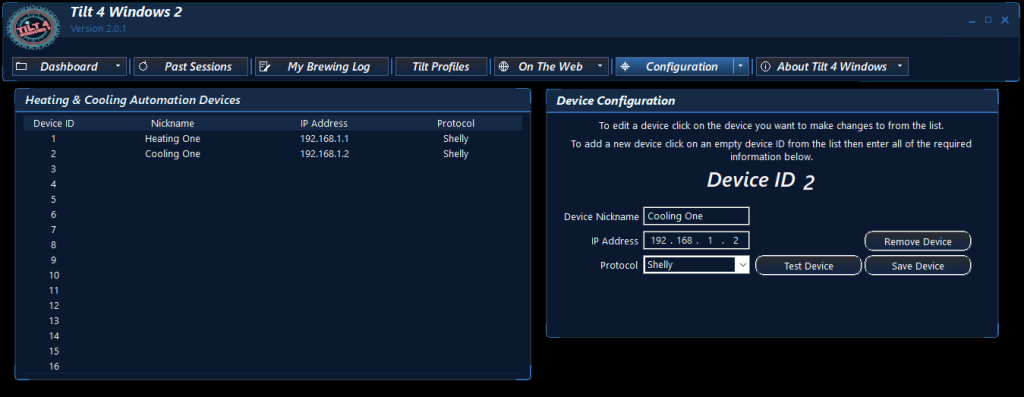
Managing Smart Plugs:

To Add a New Device:

  1. Click on an empty slot in the device list.
  2. Enter a custom Nickname and the device’s IP Address.
  3. Select the appropriate communication Protocol from the dropdown menu.
  4. Test the connection by plugging an appliance (like a lamp) into the smart plug and clicking Test Device. The plug will cycle on briefly to confirm it works.
  5. Click Save Device to finalize the setup.

To Edit or Remove a Device:

  • Modify: Select the smart plug from the list, apply your changes, and click Save Device.
  • Delete: Click the device you wish to delete from the list, then click Remove Device.
Updated on October 14, 2026
Configure your Text & Email information for notificationsConfigure T4W’s Color Theme
  • Home
  • System Requirements
  • Compatible Products
  • Knowledge Base
  • User Manual
  • Download
  • About
  • Contact

Copyright © 2026 Tilt 4 Windows 2