Google Sheets Integration Overview
Tilt 4 Windows 2 offers two distinct methods for logging data to Google Sheets:
- Custom Setup: For users who followed the standard setup on the Tilt Hydrometer website, hosting the sheet directly inside their personal Google account. (Note: If you use this method, configure your connection as a custom sheet under the Cloud Servers settings instead of following this guide.)
- Automated Setup: An effortless integration where Tilt 4 Windows 2 automatically provisions the spreadsheet and shares access directly with you.
How to Set Up Automated Google Sheets Monitoring:
Developed in partnership with BaronBrew, this feature allows you to securely monitor your fermentation data from anywhere in the world.
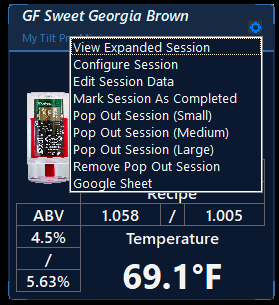
Select the Configure Session menu option to begin the setup wizard.
Locate the active batch on your dashboard.
Click the Session Options Gear icon in the top-right corner of the session box.
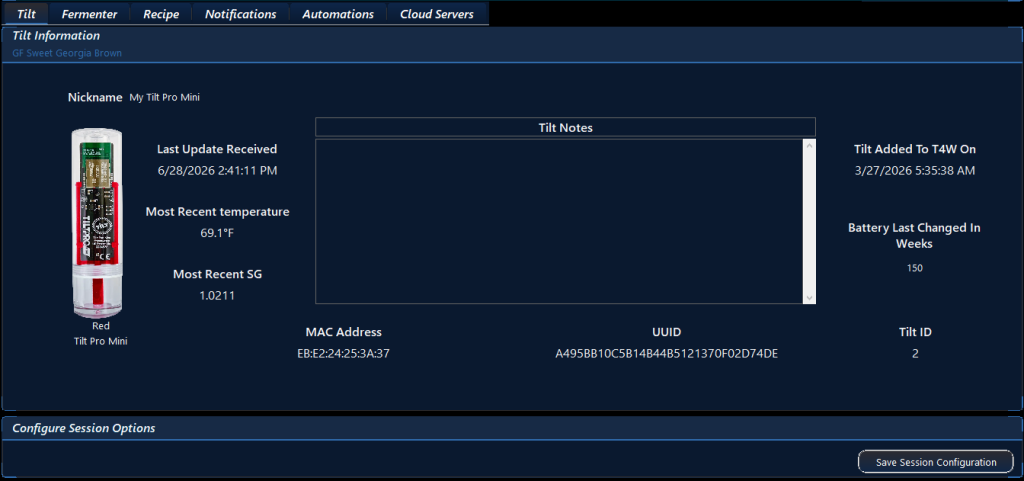
The Configure Session screen will be displayed as seen below.
Activating Your Google Sheet:
- Once you have opened you can then click the Cloud Servers tab.
- Wait until your active session has received a few initial data updates from your Tilt.
- Click the Start Google Sheets Tracking button located on the right side of the panel to automatically configure and link your spreadsheet.
Once activated, this link allows you to securely monitor your fermentation progress from any device, anywhere.
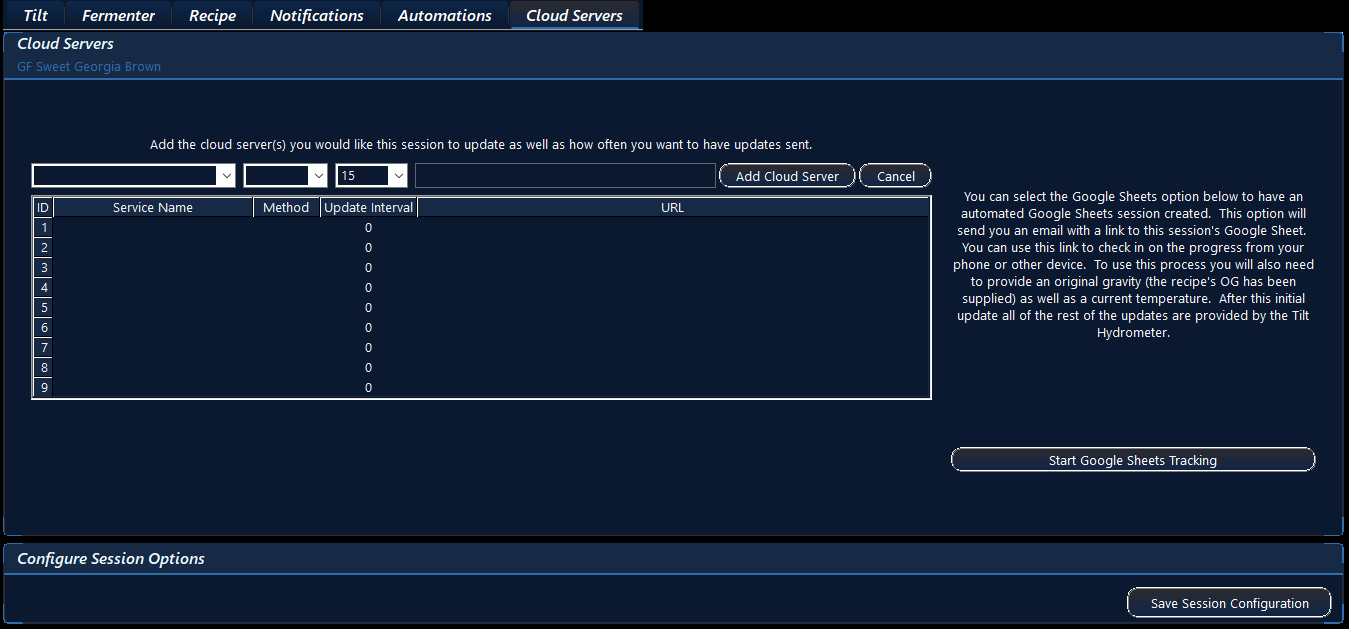
After clicking on the Start Google Sheets Tracking button the button will change to a Creating Google Sheet message. This can take a little while. Please stay on this page while the sheet is created.

After the page has been created T4W will get it up to date with all of the fermentation information that has already been received from your Tilt. Depending on how many session updates you have received this can take a while. Please stay on the window until it has finished.

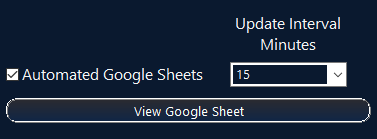
After all of the session updates have been sent to your Google Sheet the Cloud Servers section will look like this. The Check Mark in the Google Sheets means T4W will update that sheet, the View Google Sheet button will open your default browser to your Google Sheet and the Update Interval allows you to set how often in minutes your sheet will be updated.
If you check your email you will find a message with a link to your Google Sheet. You can use this link anytime to view your sheet. This comes in handy if you are out of town or just at work and want to see how your fermentation is progressing.

You will have a second email that contains a little information about the Google Sheet and also has a button to view the sheet.

Your Google Sheet is now configured and will look something like this:
