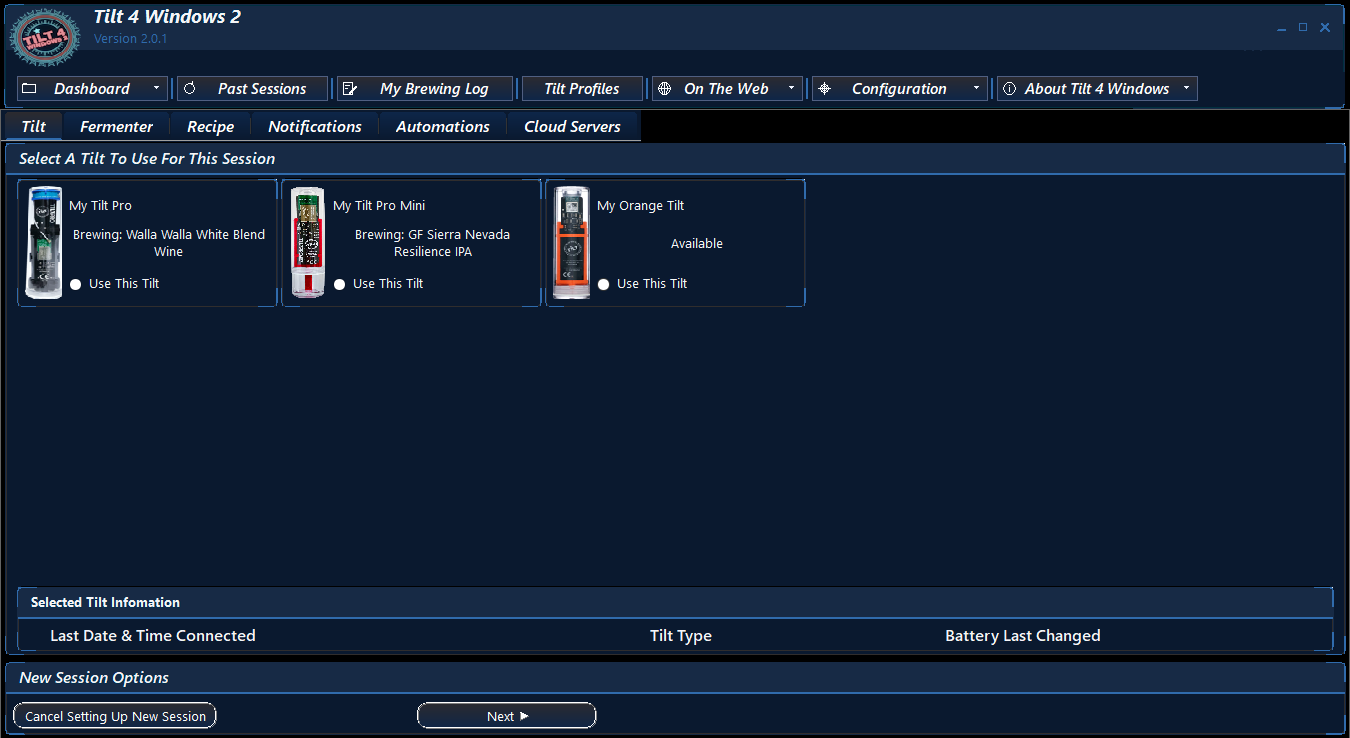
To start a new Tilt session click on the Start New Session button located in the bottom right corner of the Dashboard.

The Start New Session window will be displayed as seen below. On the first screen you will select the Tilt you want to use for this session.
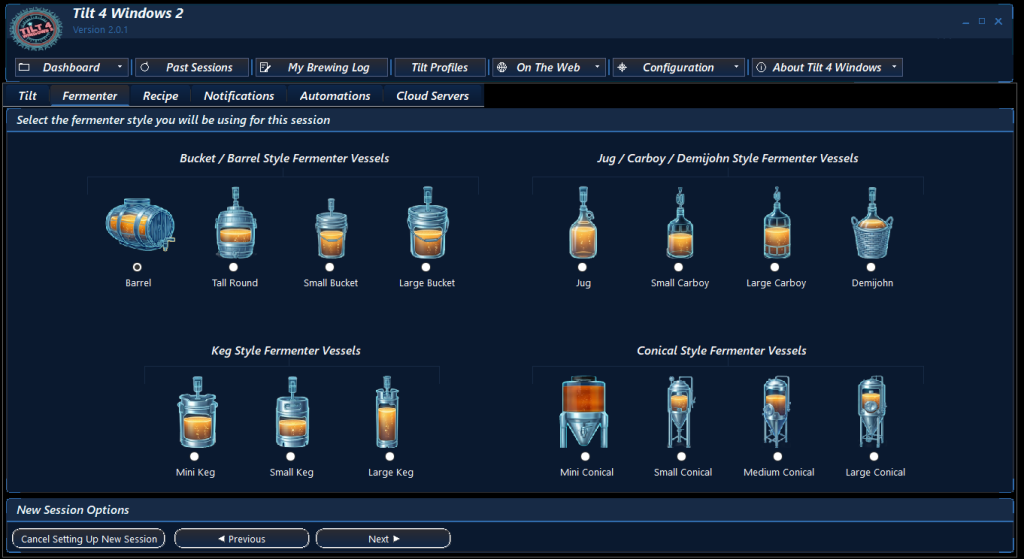
The fermenter tab allows you to select a fermenter for this session. This is a visual aid only.
The Recipe tab allows you to provide information about the beverage for this session. At a minimum you must supply a Recipe Name.
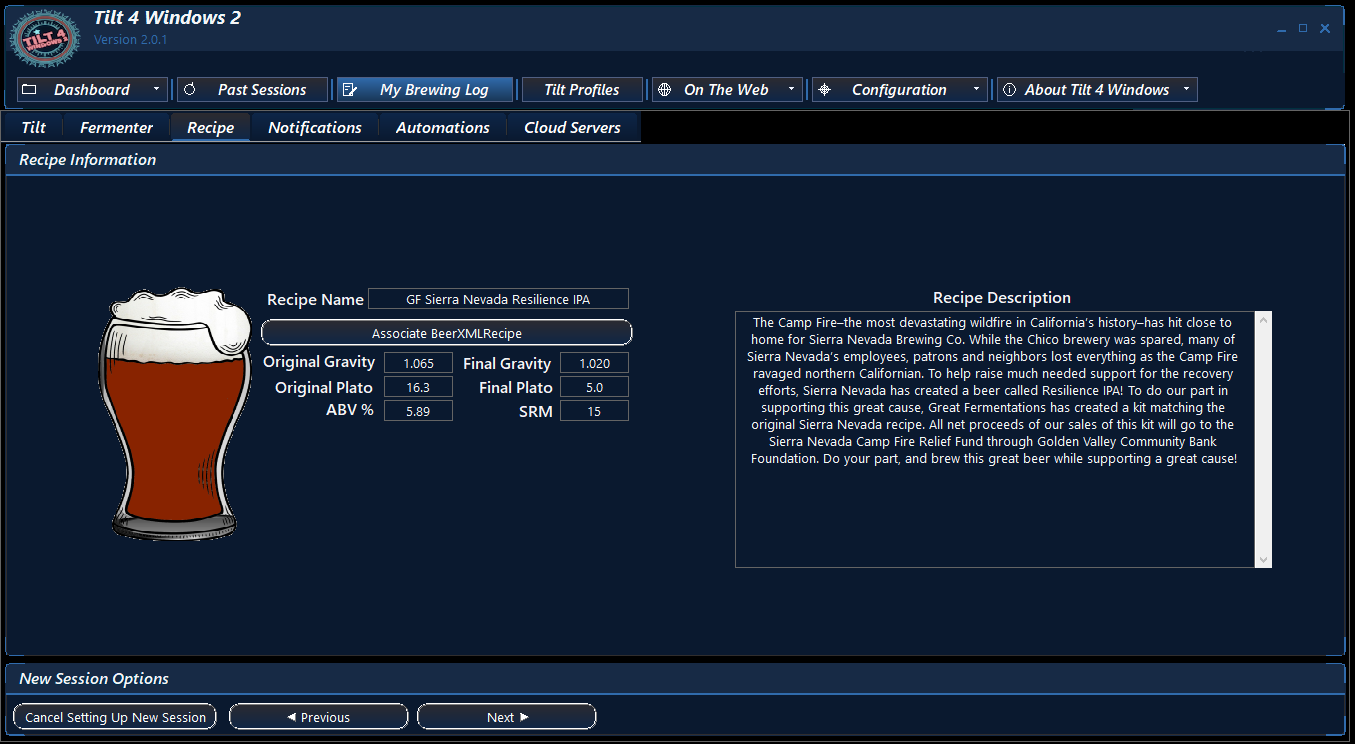
If you have a BeerXML recipe file that’s even better! All of the information from the recipe file will be included in the session and the above boxes will be filled in for you. Simply click the Associate BeerXMLRecipe button and then select your recipe file.

The Notifications tab allows you to configure the notifications you want to receive for this session.
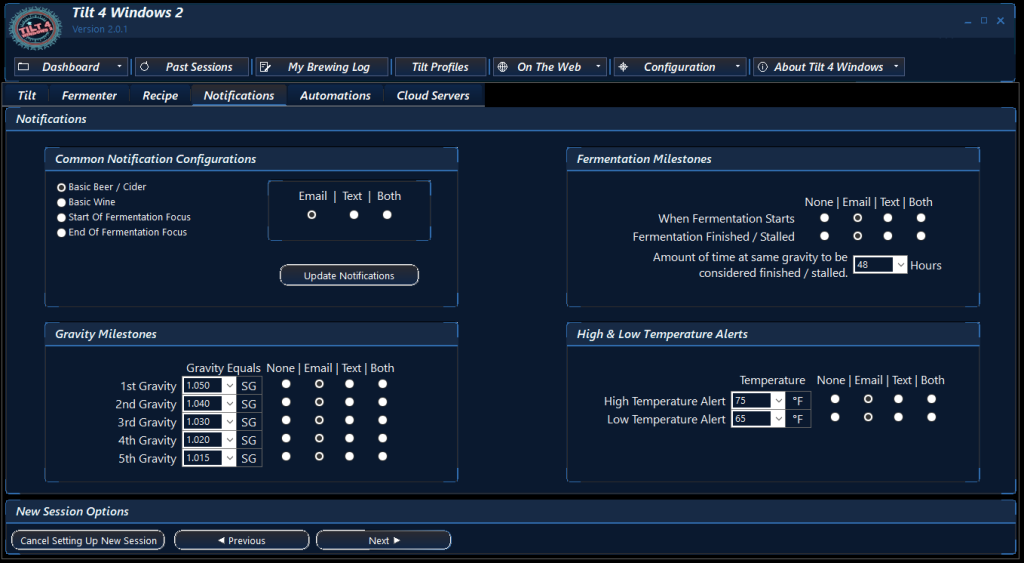
The Automations tab allows you to configure smart plugs to control the heating and cooling for this session.
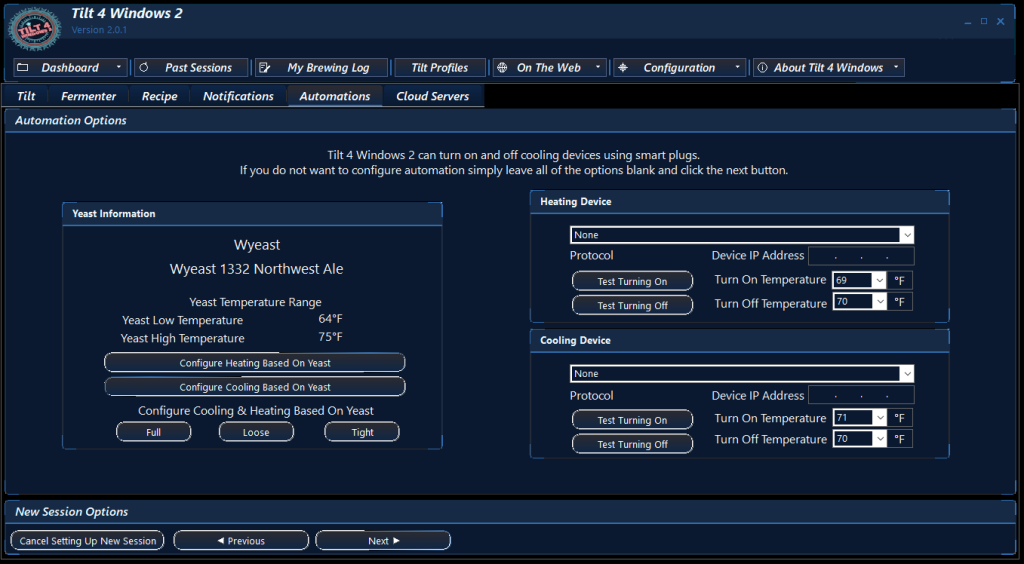
The Cloud Servers tab allows you to configure the cloud servers you want updated during this session as well as you can create an automated Google Sheets session.
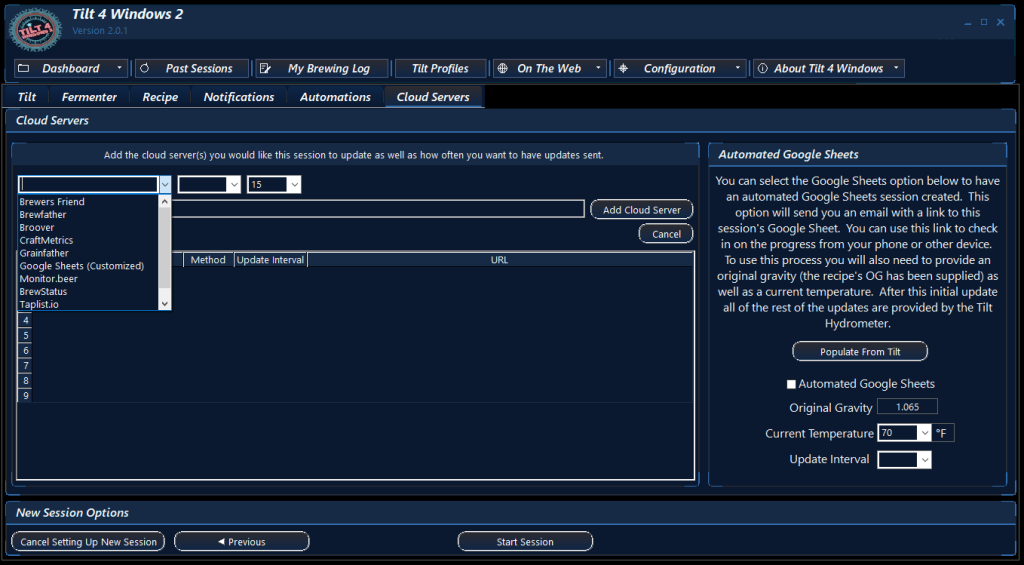
When the Cloud Servers tab is selected at the bottom of the screen you will have a Start Session button. If you are ready to start the session simply click the Start Session button.

Your new session will now be displayed on the Dashboard and monitoring will begin.